BigPrint Puzzle Studio - step by step
From your license key to a book live on Amazon. Read it before you buy to see exactly how it works - every screenshot is the real studio.
What you need
- A computer with Chrome, Edge, Firefox or Safari (Windows, Mac or Chromebook). Nothing to install.
- Your license key - shown after you pay and in your receipt email from Lemon Squeezy.
- For publishing: a free Amazon KDP account (or an Etsy shop for printables).
Unlock the studio
- Press Open your studio on the thank-you page or in your receipt (the address is
https://largeprintlab.com/bigprint-studio/app/). - Paste your license key and press Unlock. You do this once per computer.
- Bookmark the page (Ctrl+D, or Cmd+D on a Mac).
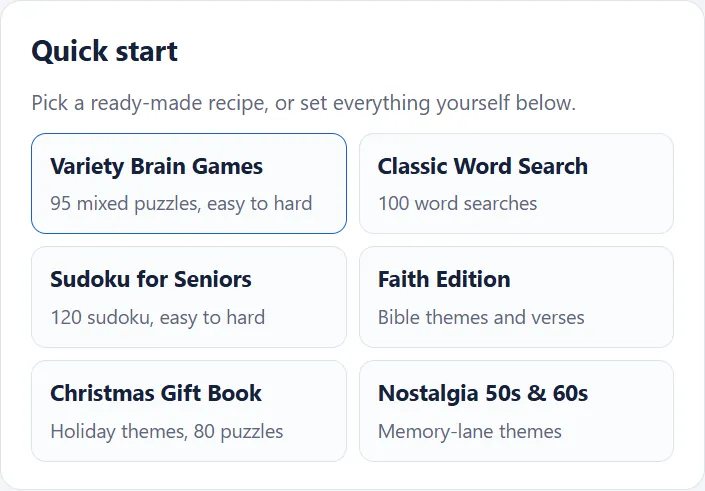
1. Quick start
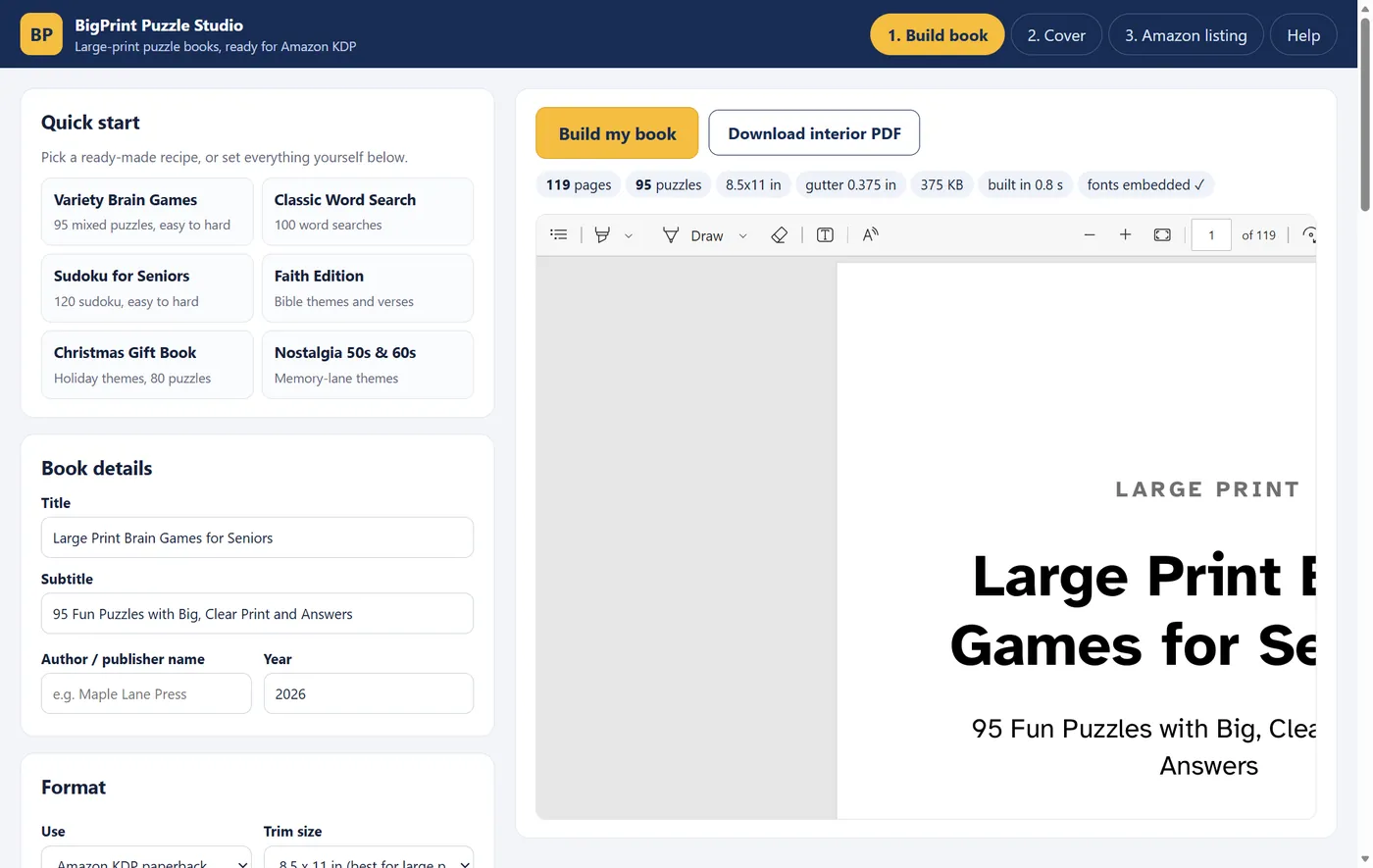
Pick a ready-made recipe - Variety Brain Games is a great first book. It fills in every setting below; change anything you like.
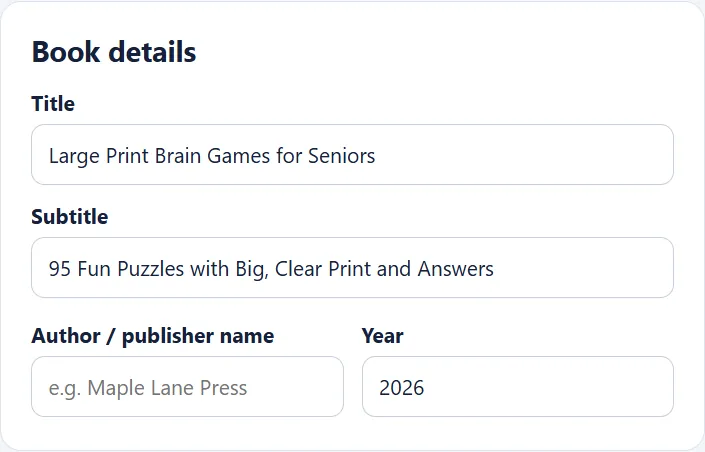
2. Book details & format
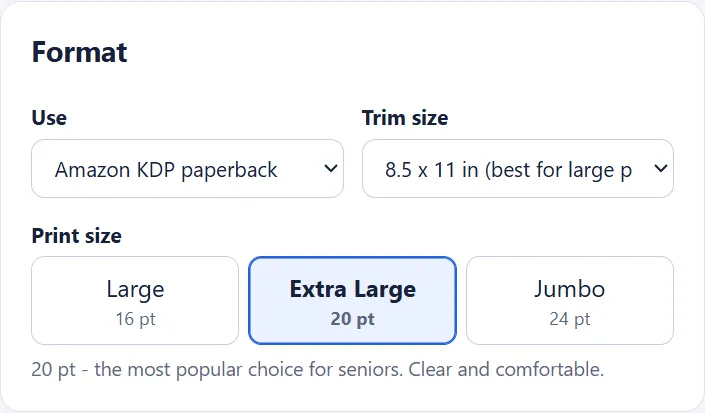
Type the title, subtitle and author / publisher name exactly as they will appear on Amazon. Under Format choose:
- Use: Amazon KDP paperback, or Printable PDF (Etsy / home print).
- Trim size: 8.5 x 11 in is best for large print. Printables use US Letter or A4.
- Print size: Large 16 pt, Extra Large 20 pt (the most popular) or Jumbo 24 pt for low vision.
3. Puzzles & difficulty
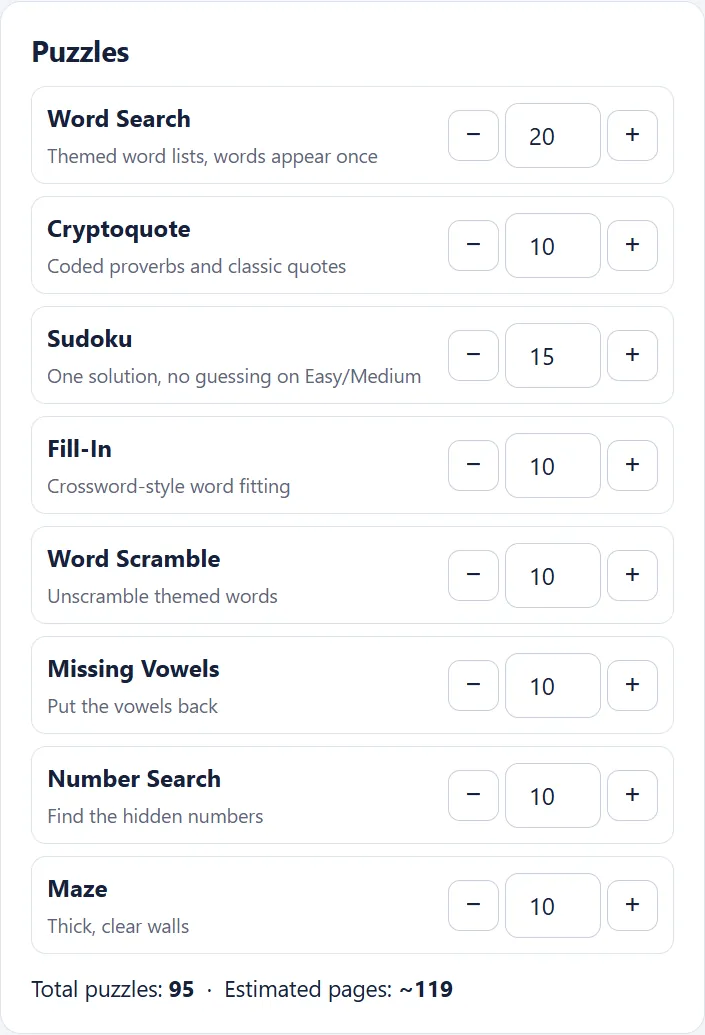
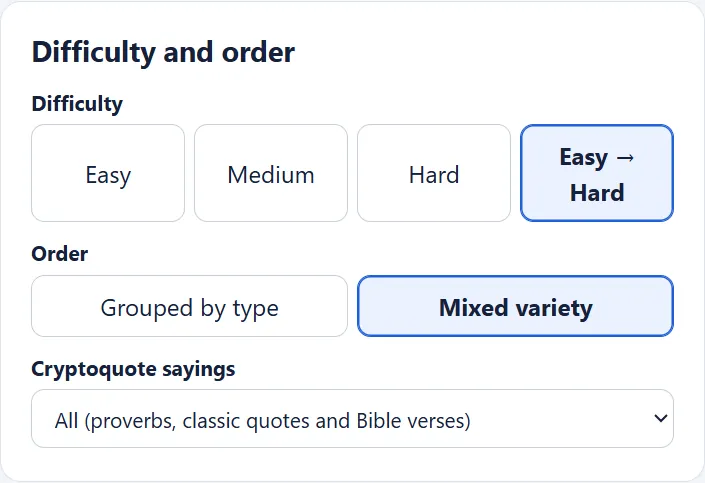
Set how many of each puzzle type you want. The studio shows the total puzzles and estimated pages as you go. Then choose the difficulty (Easy, Medium, Hard, or Easy → Hard, which gets harder through the book) and whether puzzles are grouped by type or mixed.
4. Themes
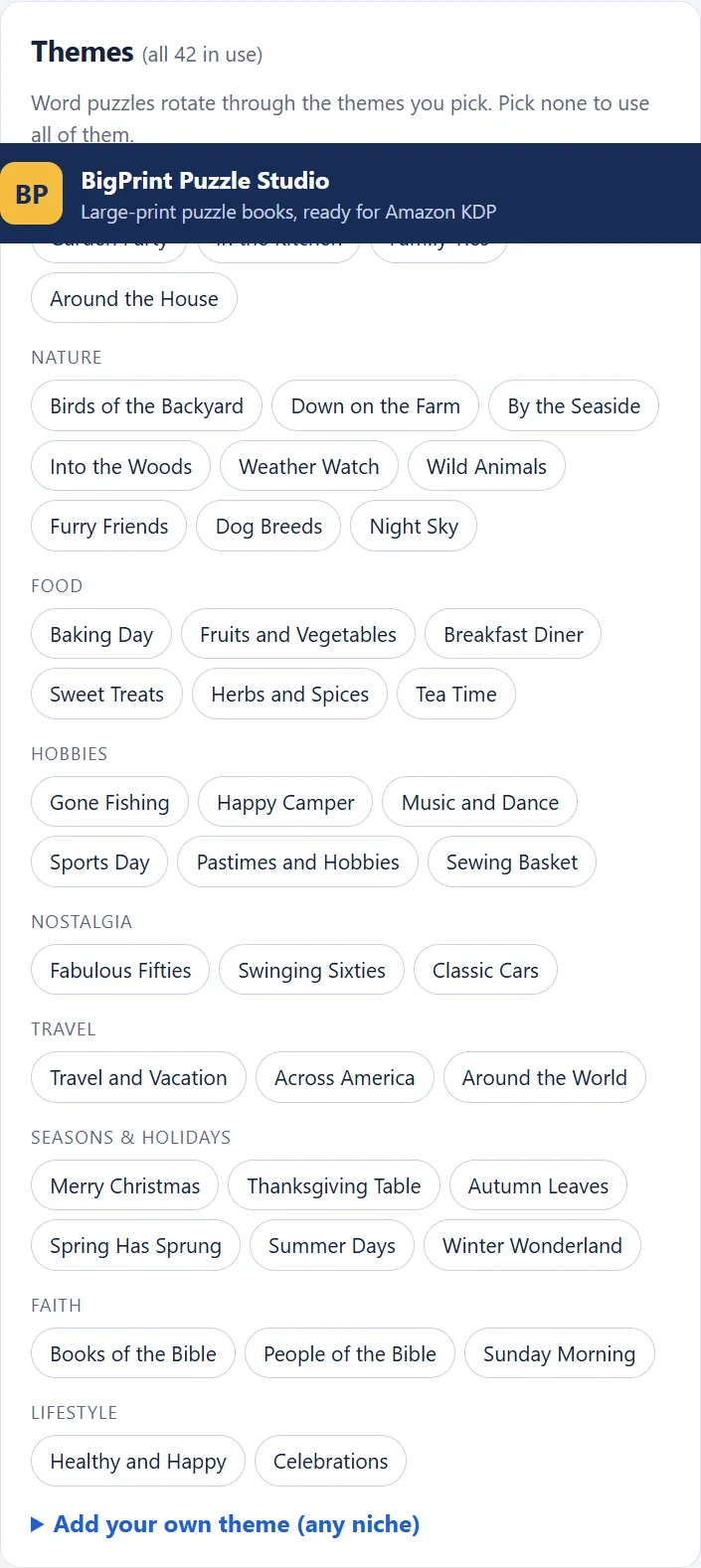
Word puzzles rotate through the themes you tick - or all 42 if you tick none. To make a niche book, open Add your own theme, give it a name and paste at least 12 words (golf, nursing, a hometown, a hobby...).
Under Pages to include keep contents, copyright, how-to pages, answer key and page numbers switched on for KDP. Variation gives each book a number: keep it to rebuild the exact same book later, or press New variation for a different book with the same settings.
5. Build & download
Press Build my book. The preview shows every page, with the page count, trim, gutter and file size. Press Download interior PDF. Note the page count - the cover needs it.
6. The cover
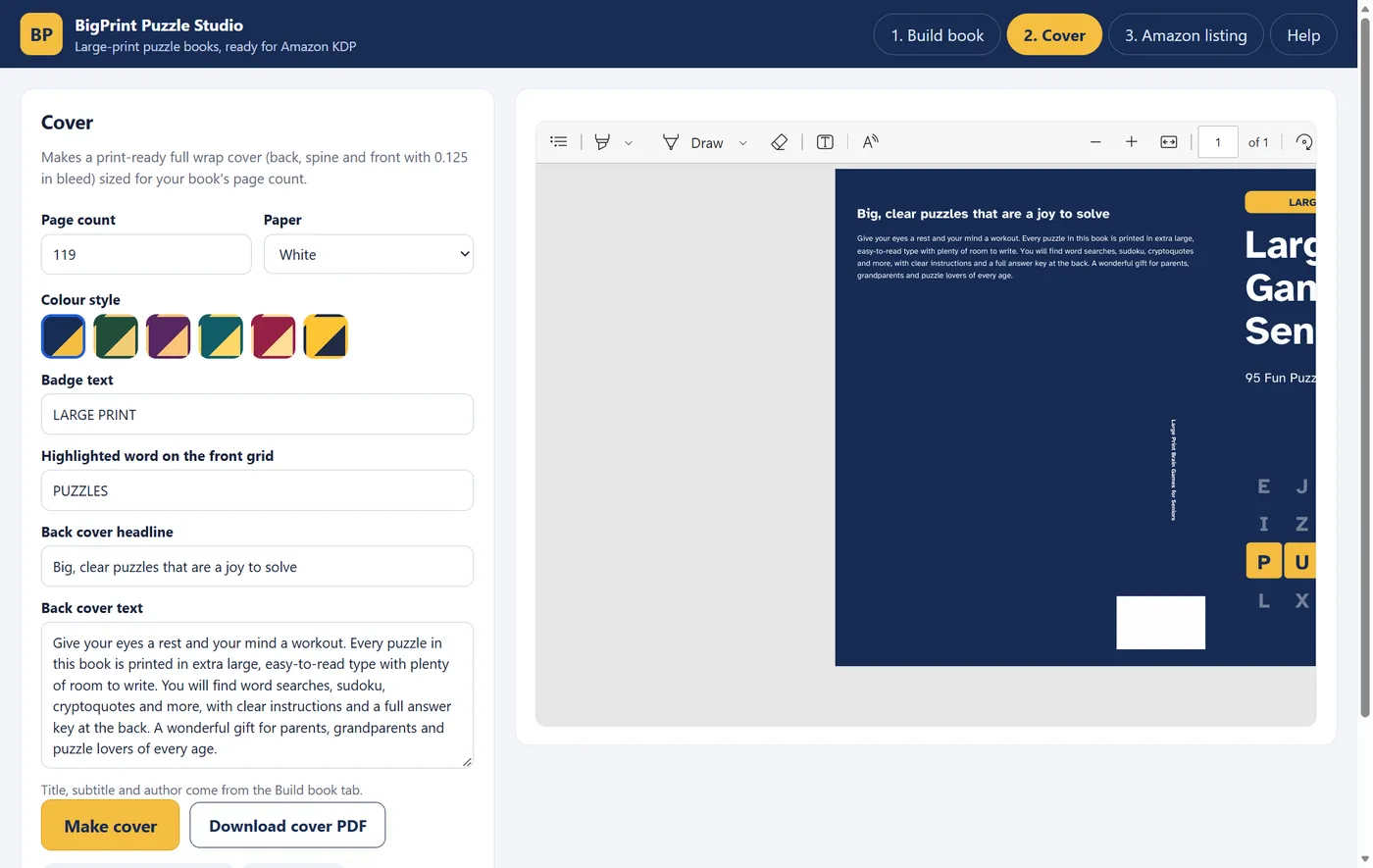
Open the Cover tab. The page count is filled in from your build; choose the paper (white or cream must match KDP), a colour style, the badge and back-cover text. Press Make cover and Download cover PDF. It is a full wrap - back, spine and front with 0.125 in bleed - with a clear area for Amazon's barcode.
7. The Amazon listing
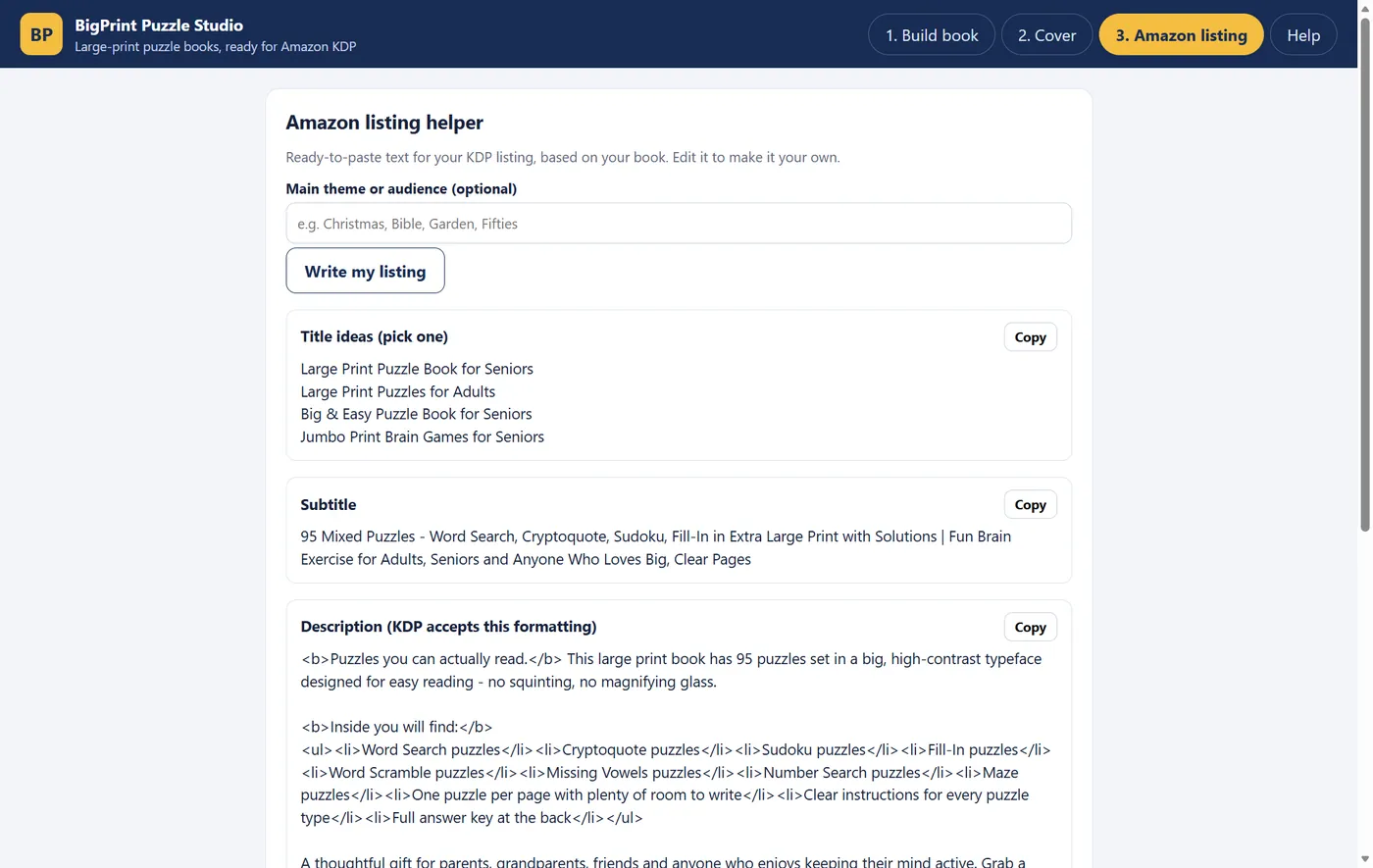
Open Amazon listing, optionally type the main theme or audience, and press Write my listing. Copy the title ideas, subtitle, description (KDP accepts its formatting), 7 keyword boxes and category ideas. Edit them to make them your own.
8. Upload to Amazon KDP
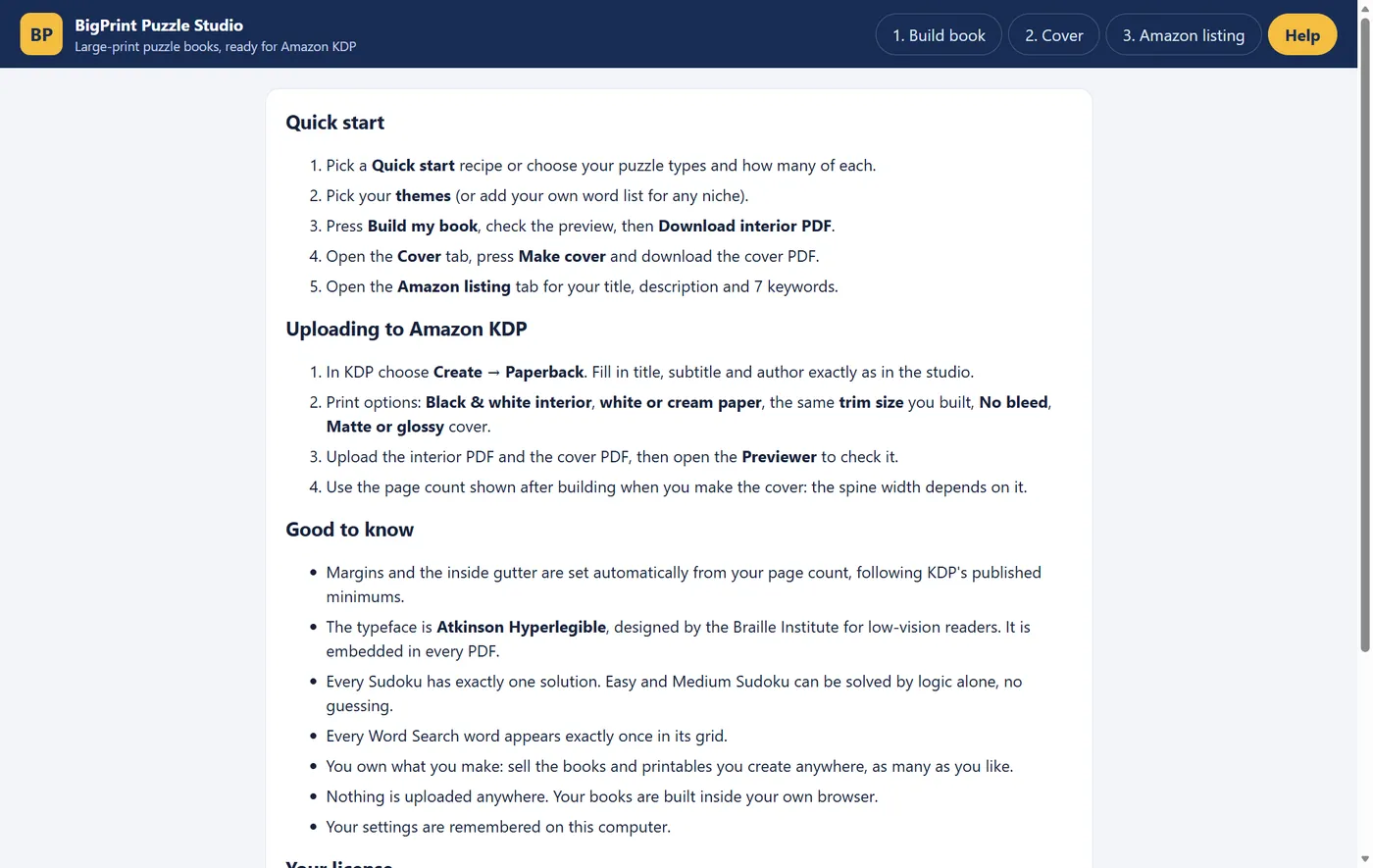
- In KDP choose Create → Paperback. Enter the title, subtitle and author exactly as in the studio.
- Paste the description and keywords; pick the categories.
- Print options: Black & white interior, white or cream paper (as in the cover tab), the same trim size you built, No bleed, matte or glossy cover.
- Upload the interior PDF and the cover PDF, then open the Previewer and check every page.
- Set your price and publish. Amazon reviews every book; approval usually takes up to 72 hours.
Selling printables
Choose Printable PDF under Format and US Letter or A4. Upload the PDF to Etsy as a digital download, or sell it from your own site. A cover is optional for printables - the first page works as a preview image.
Your license
- One key works on up to 3 computers or browsers.
- Moving to a new computer? Open the studio's Help tab and press Free this computer first.
- Lost your key? It is in your receipt and in My Orders.
- You may sell everything you make. You may not share or resell the studio or the key.
Troubleshooting
- "This key has reached its limit" - free an old computer from its Help tab, or email us and we will reset it.
- Nothing happens when I press Build - update your browser; very old browsers are not supported.
- KDP says the margins are wrong - make sure you chose No bleed and the same trim size you built.
- Cover does not fit - rebuild the cover with the exact page count KDP shows.
Still stuck? See the help page or email support@largeprintlab.com.