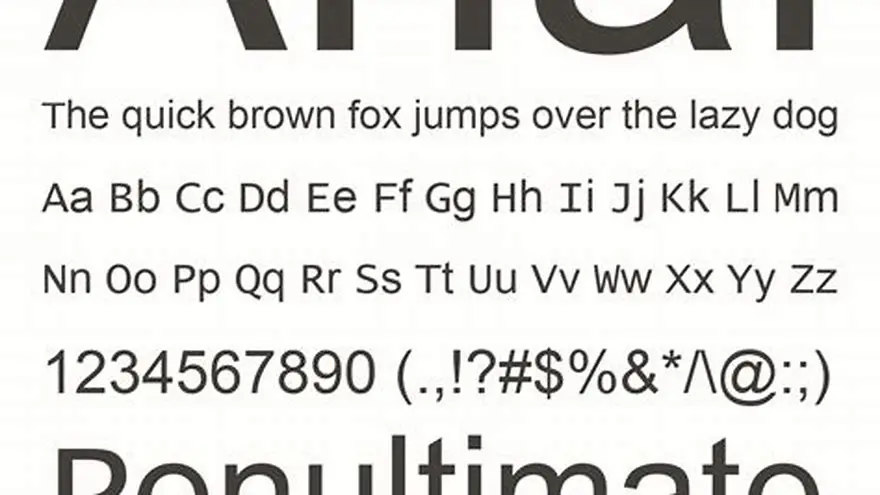
How to write or set text in Arial font and make it your default
Step-by-step instructions to select, set, and make Arial font your default in common word processors for better legibility and consistent print results.
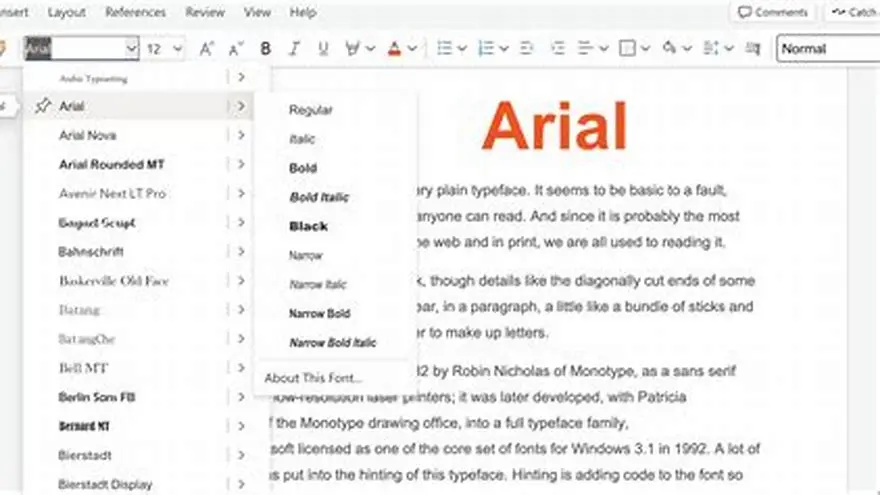
To write or set text in Arial font, open your word processor’s font menu, select 'Arial' from the list, then type or highlight existing text and apply it. Making Arial default requires changing your style or preferences and saving the change.
On this page (10 sections)
- Key takeaways
- How to select Arial font in word processors
- How to make Arial the default font for new documents
- Where to find or download Arial font if it is missing
- How to check Arial font style and usage in your document
- Practical steps to set Arial font in common software
- How to ensure Arial fonts print clearly for older adults
- How to write in Arial font
- Recommended tool to create large-print puzzles with Arial font
- Questions people still ask
Part of our guide on is arial an accessible font for print
Exact steps to select, set, and make Arial your default font for clear and consistent printed puzzles and activities.
| Default font setting | style or preferences |
|---|---|
| Arial availability | usually preinstalled |
| Font style check | via font menu |
| Download Arial | manufacturer or system sources |
Key takeaways
- Arial font is widely available and clear for print legibility.
- Select Arial from the font list to apply it to text.
- Set Arial as default in style or font settings to use it automatically.
- You can download Arial if missing from your system.
- Check font style in your document by selecting text and reviewing font details.
How to select Arial font in word processors
To write text in Arial font, you start by opening your word processor, such as Microsoft Word, Google Docs, or LibreOffice Writer. Locate the font dropdown menu, typically at the top toolbar. It lists fonts alphabetically.
Scroll or type into the font selection box to find Arial. It is usually near the start of the list. Click on Arial to apply it. Any new text you type will use Arial until you choose another font.
If you want to change existing text, highlight that text first, then select Arial from the font list. The text changes immediately. This works identically in most word processors and some design tools.
Arial is popular for its clean, sans-serif style that prints clearly on most printers. It is especially useful for creating large-print materials for seniors, where clarity matters. People in this spot often ask about what font size is easy to read for seniors as well.
How to make Arial the default font for new documents
Making Arial your default font means every new document you create will start with Arial for all text. This saves you from manually selecting it every time.
In Microsoft Word, for example, after selecting Arial and a preferred size, open the font dialog box. Click 'Set As Default' at the bottom, then choose 'All documents based on the Normal template'. This writes Arial into your default template.
Other word processors have similar processes: in Google Docs, change the font on the blank document, then select 'Styles' > 'Options' > 'Save as my default styles'. LibreOffice lets you edit the default template and save it with Arial set.
Keep in mind this only affects new documents created after the change. Existing documents will retain their fonts unless you change them manually.
- Saves time applying Arial repeatedly
- Ensures consistent appearance across new documents
- Does not affect existing documents
- Requires template or style editing knowledge
Where to find or download Arial font if it is missing
Arial is a standard font bundled with most Windows and Mac systems. However, some older or stripped-down operating systems might lack it, or it may have been accidentally deleted.
If Arial is missing, first check your system’s font folder (on Windows, usually C:\Windows\Fonts; on Mac, Font Book). Sometimes reinstalling or repairing your system fonts restores Arial.
Alternatively, download Arial from Microsoft’s official font packages or trusted font repositories. Ensure the source is legitimate to avoid corrupted or unsafe files.
Free alternatives to Arial include Liberation Sans or other sans-serif fonts that look similar and support clear printing. Use these if you cannot get Arial for legal or technical reasons.
How to check Arial font style and usage in your document
To verify if text in your document is indeed Arial, highlight the text and look at the font name displayed in the font menu or toolbar. It must show 'Arial'.
Sometimes documents contain mixed fonts. To find them quickly, use 'Select All' and examine the font dropdown; if it shows '(Mixed Fonts)', change the font to Arial to unify it.
Document styles can also specify fonts. Check paragraph or character styles in the style pane. If the style uses Arial, text assigned to that style will appear in Arial unless locally overridden.
Checking font size, weight (bold), and style (italic) is also critical for consistent print readability, especially in large-print puzzles and activities.
Practical steps to set Arial font in common software
Each software handles fonts slightly differently. Here is a simplified procedure for three popular tools:
Microsoft Word: Click the font dropdown on the Home tab, select Arial, then type. To set default, open the Font dialog (Ctrl+D), set Arial, click 'Set As Default'.
Google Docs: Click the font dropdown, select Arial, then type or highlight existing text to change. Go to 'Styles' > 'Options' > 'Save as my default styles' to make it permanent.
LibreOffice Writer: Select Arial from the font menu, then highlight text or type. To make default, modify the default template by opening it, setting Arial, then saving as the default template.
- Open your document or start a new one.
- Locate and open the font selection menu.
- Choose Arial from the list.
- Type or highlight existing text to apply Arial.
- Access font or style settings to make Arial default if desired.
- Save your document or template.
| Software | Select Arial | Make Arial Default |
|---|---|---|
| Microsoft Word | Font dropdown > Arial | Font dialog > Set As Default |
| Google Docs | Font dropdown > Arial | Styles > Options > Save default |
| LibreOffice | Font dropdown > Arial | Edit default template > Save |
How to ensure Arial fonts print clearly for older adults
Arial’s clean sans-serif lines make it a solid choice for printing puzzles and activities for seniors. But font size and style choices matter just as much.
Use a minimum font size of 14 to 18 points for legibility, increasing if your audience has low vision. Bold weights improve contrast but avoid italic or condensed styles that reduce clarity.
Test print samples to confirm your chosen Arial size and weight appear sharp on your printer. Different printers and paper types affect readability.
Pair Arial with sufficient line spacing and margin to avoid crowding. Good contrast, like black text on white paper, is also essential for easy reading.
How to write in Arial font
Writing in Arial font involves selecting the font in your word processor or design software before typing, or changing existing text to Arial after typing. This immediate action ensures consistency and readability.
To select Arial, open the font selector, usually a dropdown near the top toolbar, and choose Arial explicitly. Avoid relying on default fonts that may vary by system or document.
Consider making Arial your default font if you frequently produce activity materials for older adults. This prevents inconsistent fonts creeping into your puzzles and word games.
If you are using templates or puzzle creation tools, check their font settings to confirm they use Arial or allow you to switch fonts. This verification step keeps your printables clear and professional.
Recommended tool to create large-print puzzles with Arial font
BigPrint Puzzle Studio is a web-based tool that lets you create large-print puzzle books quickly with Arial font and other clear styles pre-configured. It simplifies the formatting and generation process, saving time.
With this tool, you can ensure your puzzle text uses Arial, sized appropriately for seniors, and produce print-ready PDFs ready for Amazon KDP or Etsy sales.
The tool's interface includes font selection and style controls, meaning you do not need to manually set fonts in separate word processors or design software.
If you prefer free or manual approaches, editing templates in Word or Google Docs works but requires more time and effort to maintain consistent Arial use and sizing.
- Quick, consistent Arial font application
- Large-print outputs suited for seniors
- Built-in puzzle types and covers
- Requires purchase
- Not a substitute for marketing or sales skills
Questions people still ask
Can I use Arial font for handwriting or only digital typing?
Arial is a digital font designed for screen and print; to 'write' in Arial by hand, you would mimic its style, but true Arial is only available in digital formats.
Is it possible to change only some paragraphs in a document to Arial while others stay different fonts?
Yes, highlight the specific paragraphs and apply Arial from the font menu. Mixing fonts is possible but may reduce readability in printed materials.
What if Arial is not installed on all users' computers who receive my puzzle files?
PDF files embed fonts usually, but if sending editable files, recipients without Arial will see a default substitute. Consider distributing PDFs for consistency.
How do I confirm if my document’s default template uses Arial?
Open the template or create a new document based on it, select all text, and check the font in the toolbar. Non-Arial fonts indicate the template isn’t set to Arial.
Can I legally download and use Arial for commercial puzzle books?
Arial is typically licensed with your operating system or Microsoft products. Using it in commercial printables is generally allowed, but confirm your specific licenses.