Activity calendar for seniors: how to make a clear, printable schedule
Step-by-step guide to making an accessible, printable activity calendar that seniors and care home residents will enjoy and use.
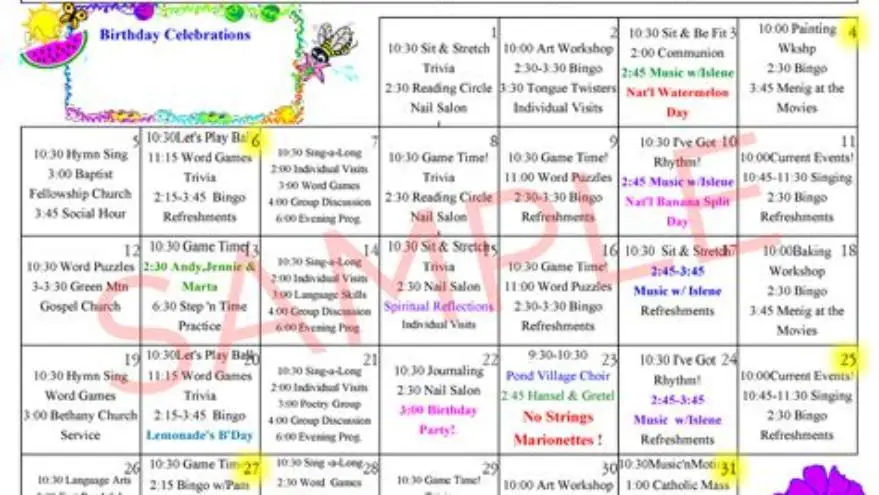
To create an activity calendar for seniors, start by listing events and times, choose large, clear fonts, and use tools like Excel for grids or Canva for design; print in at least 16-point font for easy reading.
On this page (9 sections)
- Key takeaways
- How to make calendar of activities for seniors
- How to create a calendar of events using Excel
- How to create an activity calendar on Canva
- How to create an interactive or free activity calendar
- How to create an activity calendar
- How to create an activity calendar on Excel and Canva
- How to create an activity calendar
- Questions people still ask
Part of our guide on creative ideas for nursing homes
| Font size | 16-24 pt |
|---|---|
| Print format | A4 or letter |
| Activity count | 5-7 per week |
| Tool options | Excel, Canva, free online |
| Calendar type | Printable or interactive |
Key takeaways
- Use large fonts (16pt or more) for readability.
- Plan activities that fit seniors’ interests and abilities.
- Excel offers grid control; Canva offers design flexibility.
- Printable and interactive calendars serve different needs.
- Test print to ensure clarity before distribution.
How to make calendar of activities for seniors
Start with a clear list of activities you want to include, tailored to your seniors’ interests and abilities. Focus on familiar events but add variety to keep engagement high. Aim to schedule about five to seven activities per week, spread out evenly to avoid overwhelming residents.
Choose font sizes of at least 16-point for all text. This ensures the calendar is legible, especially for residents with low vision. Use high-contrast colors, like black text on white or pastel backgrounds, to help with readability. Avoid clutter by leaving enough white space around text and between days.
Organize activities by day and time, grouping similar types like physical, cognitive, and social events. Include clear headings for each day and time slot. Make sure each entry describes the activity simply and concisely. This structure helps residents and staff quickly scan and understand the schedule.
How to create a calendar of events using Excel
Excel is a practical tool if you want precise control over layout. Start by opening a blank spreadsheet and set up a seven-column grid for days of the week. Rows can represent time slots or activity types depending on your preference. Before you commit to anything, it is worth looking at how to run a puzzle club at a senior center.
Adjust the column widths and row heights so each cell has enough space to hold text in at least 16-point font. Use cell borders to clearly define days and times. Fill cell backgrounds with light colors to differentiate weekdays or highlight special events.
Type each activity directly into the relevant cell. Use concise wording and consistent formatting. You can add notes or reminders in smaller font if needed, but keep the main calendar uncluttered. Finally, save as PDF for easy printing or sharing.
- Open Excel and create a new blank worksheet.
- Set columns for each day: Monday through Sunday.
- Adjust cell sizes to fit large, clear text (16pt+).
- Enter activities by day and time in each cell.
- Apply borders and light shading for readability.
- Save and export as PDF for printing.
- Precise control over layout
- Easy to update and save
- Free with many Windows or Office licenses
- Requires some Excel familiarity
- Limited graphic design options
- May look plain without extra formatting
How to create an activity calendar on Canva
Canva offers user-friendly templates that combine professional design with easy editing, ideal if you want a visually appealing calendar. Sign up for free, then search for calendar templates. Choose one with large text areas that you can customize. There is more on make word search book no canva in a separate guide.
Modify fonts to at least 16-point size and select clear, simple typefaces. Replace template content with your planned activities, adjusting colors for high contrast and readability. Canva’s drag-and-drop features let you add icons or images to make the calendar more engaging.
Once complete, download the calendar as a PDF for printing or digital sharing. Canva also lets you share live links for interactive online calendars, though seniors may prefer printed copies for ease of use.
- Attractive, customizable designs
- No advanced skills needed
- Supports interactive online sharing
- Free plan limits some features
- May require internet access
- Less control over fine layout details
How to create an interactive or free activity calendar
Interactive calendars let users click on events for more info, set reminders, or sync with devices. Google Calendar is a free option, allowing easy sharing and updates. Create events with times, descriptions, and notifications, then share the calendar link with residents or families. There is more on monthly calendar ideas seniors in a separate guide.
However, interactive calendars require digital literacy and access to devices, which many seniors might lack. Printed calendars remain essential for accessibility. Some care homes print interactive calendar exports monthly to combine both methods.
Free printable templates are available online but often lack customization or large-print options. Modifying them in Word or Excel to enlarge fonts and simplify layouts improves usability. Testing with your residents will show which format works best.
- Easy updates and reminders
- Accessible remotely by families
- Often free to use
- Requires digital devices and skills
- Not suitable for all seniors
- Printing still needed for many users
How to create an activity calendar
Combining planning, design, and distribution steps helps you create an effective activity calendar. Start by gathering your weekly or monthly activity list with times and locations. Use a tool suited to your skills and audience — Excel for grids, Canva for design, or even pen and paper for simplicity. If that sounds like your situation, read up on using clear fonts and photos next.
Keep text legible with fonts sized 16-24 points. Use consistent color coding for activity types to aid recognition. Include key details like activity leader names and room numbers if relevant. After drafting, print a test copy to check clarity and adjust spacing or font size as needed.
Distribute calendars well ahead of time, post copies in common areas, and provide personal copies to residents as needed. Collect feedback regularly to improve layout or content. Repeat this process monthly or quarterly depending on your schedule.
- List all planned activities with days and times.
- Select a tool (Excel, Canva, or manual).
- Design layout: grid, colors, fonts (16pt+).
- Fill in activities, add details, color-code.
- Print test copy; adjust formatting if needed.
- Distribute printed or digital calendars.
How to create an activity calendar on Excel and Canva
Excel and Canva serve different but complementary needs. Excel excels at precise, editable grids where text fits exactly, making it ideal for functional calendars that prioritize clarity over style. You control each cell’s size and can easily update or copy calendars for recurring periods. There is more on word games for groups of seniors in a separate guide.
Canva offers templates that look polished and include engaging visuals or icons without design skills. Its interface is drag-and-drop, designed for quick creation of attractive layouts that catch attention. Canva allows PDF export for print or web sharing.
Choosing between them depends on your priorities: use Excel if you want easy updates and simple printing with maximum clarity; choose Canva if you want a calendar seniors will find visually appealing and motivating, especially for special events or themed months.
| Feature | Excel | Canva |
|---|---|---|
| Layout control | High; precise cell sizes | Moderate; template-based |
| Design options | Basic formatting only | Extensive fonts, colors, images |
| Ease of use | Some Excel knowledge required | User-friendly drag-and-drop |
| Output formats | Excel, PDF | PDF, online link |
| Cost | Often free or included | Free with paid upgrades |
- Excel is great for accuracy and updates
- Canva produces attractive, easy-to-read designs
- Excel can look plain and requires skills
- Canva may limit layout precision
How to create an activity calendar
BigPrint Puzzle Studio offers a focused solution to creating large-print activity calendars specifically tailored for seniors. It allows you to generate printable puzzle books and schedules with large, clear fonts (16, 20, or 24 point) quickly and easily, making it perfect for care home activity directors and family caregivers. The other half of this decision is assisted living low cost activities.
This tool saves time by providing ready-made themes, customizable word lists, and easy export options for printing or self-publishing. While it mainly focuses on puzzles, it helps you create complete activity packs that include calendar-like schedules of events with puzzle themes.
If you need a quick way to produce accessible, printable calendars and puzzle activities that seniors enjoy, this tool fits well. However, it does not replace general calendar apps or interactive calendars; it complements those by focusing on engagement through activities. For fully free or more design-flexible calendars, Excel and Canva remain useful alternatives.
- Designed for large-print, senior-friendly content
- Quick creation of themed puzzle calendars
- Includes export for Amazon KDP and printing
- Focused on puzzles, not general calendar tasks
- One-time payment required
- Limited layout flexibility compared to design software
Questions people still ask
What font size is best for senior activity calendars?
Font size should be at least 16-point to ensure easy reading for seniors, especially those with low vision. Larger sizes up to 24-point work well for headings.
Can I use free tools to make activity calendars for seniors?
Yes. Excel and Canva both offer free versions with enough features to create clear, printable calendars. Excel provides precise layout control; Canva offers attractive templates.
How do I make an activity calendar interactive for seniors?
Using tools like Google Calendar you can create shareable, interactive online calendars. However, many seniors prefer printed calendars due to familiarity and ease of use.
Is BigPrint Puzzle Studio useful for making calendars?
It specializes in large-print puzzle books with activity schedules integrated, making it useful for engaging seniors but not a replacement for standard calendar creation tools.
How many activities should I schedule per week?
Aim for 5 to 7 activities spread across the week to balance engagement without overwhelming seniors.
Ready to try it? It simplifies creating large-print, senior-friendly activity schedules combined with puzzle books ideal for care settings.
Create large-print puzzles now