Word search generator for KDP: format, keyword tips, and answer keys
Step-by-step guidance to create well-formatted word searches with answer keys and effective keywords for Amazon KDP puzzle books.
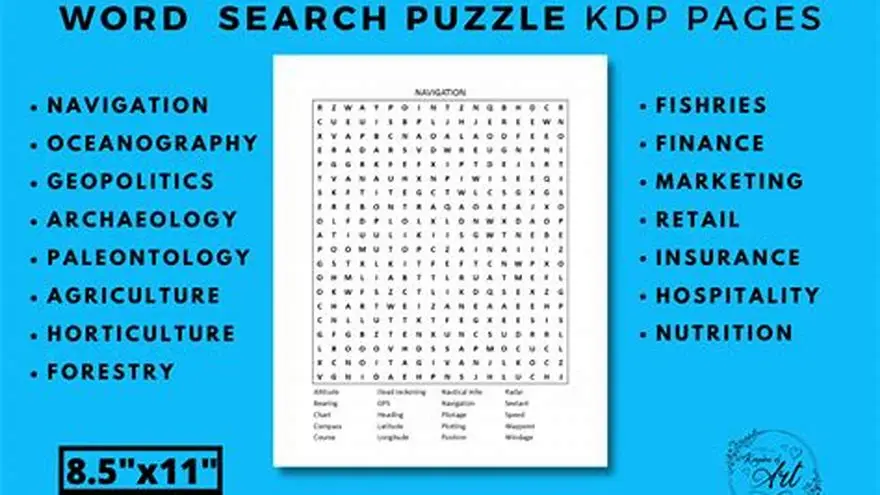
Use a word search generator that outputs KDP-ready PDFs with large-print formatting and answer keys. Include keywords targeting seniors and large print in your KDP listings to improve discoverability and sales.
On this page (9 sections)
- The short version
- How to create word searches formatted for KDP publishing
- How to include an answer key properly
- How to choose keywords for KDP word search books
- Word search generator for KDP: combining formatting, keywords, and answer keys
- Free alternatives and manual methods
- Step-by-step process to create KDP-ready word search books
- Common pitfalls when making word search puzzle books for KDP
- Questions people still ask
Part of our guide on kdp large print word search
Create well-formatted large-print word searches with answer keys and keywords that boost KDP puzzle book sales.
| Minimum font size | 18 pt |
|---|---|
| Puzzle types supported | 8 types |
| Typical puzzle grid size | 15x15 letters |
| Answer key position | After puzzle page |
| One-time payment | Yes |
The short version
- Format puzzles with at least 18-point font for readability on KDP.
- Answer keys should align with puzzle grids and be easy to find.
- Use keywords like 'large print' and 'word search for seniors' for KDP.
- Manual creation is possible but time-consuming without tools.
- BigPrint Puzzle Studio simplifies generation, formatting, and keywords.
How to create word searches formatted for KDP publishing
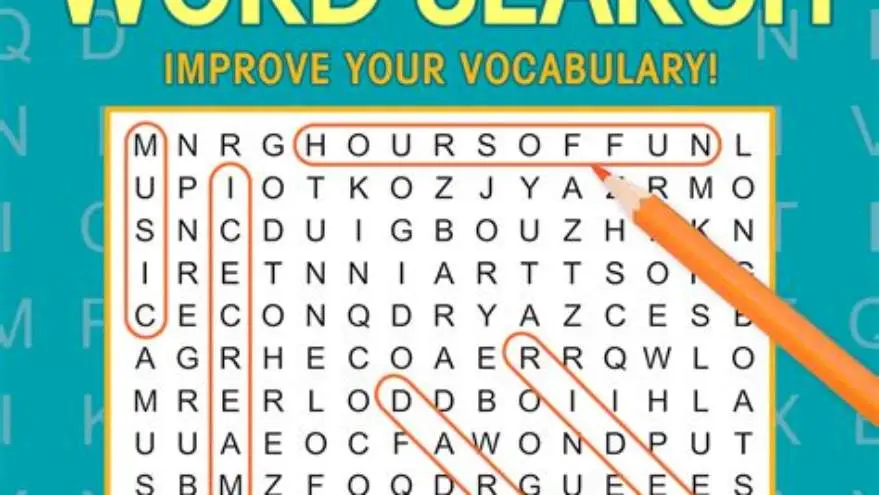
Create word searches with large, clear letters for older adults. The font size should be at least 18 points to ensure readability on printed pages. KDP requires PDFs formatted to its trim size and margins, usually 8.5 x 11 inches or 8.5 x 8.5 inches for puzzle books.
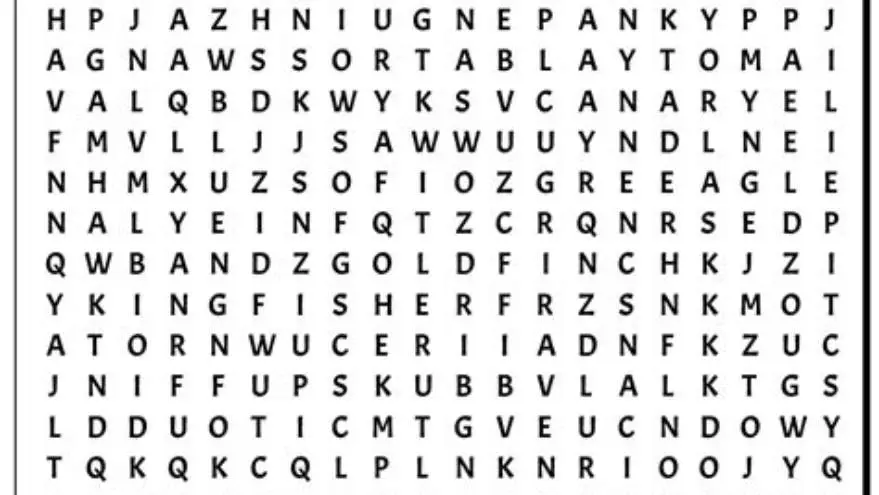
Design puzzles to fit the page with sufficient spacing between letters. Use a simple font like Arial or Verdana. Line spacing and grid size matter; 15x15 grids work well, balancing word count and legibility. Avoid cluttered layouts that frustrate users with visual impairments.
You can make puzzles manually using spreadsheets or word processors, but this takes hours per puzzle and is error-prone. Alternatively, a word search generator tool streamlines the process, automatically arranging the grid and exporting print-ready PDFs.
- Font size: 18-22 pt for large print clarity
- Grid size: typically 15x15 letters for balance
- Page size: match KDP trim size (e.g., 8.5 x 11 in)
- Margins: at least 0.5 inch to avoid print cutoff
How to include an answer key properly
An answer key should match the puzzle grid exactly, showing the found words clearly. Place it immediately after the puzzle page, so users don't struggle to locate answers. The key often uses bold or shaded letters to highlight word positions. The other half of this decision is how to make a word search book without canva.
Keep the answer key on a separate page to avoid clutter. Use the same font size as the puzzle or slightly smaller, around 14-16 points, to save space but maintain readability. Indicating directions (horizontal, vertical, diagonal) helps users with memory or vision challenges.
Including the answer key enhances user experience and reduces frustration, especially for seniors or those with cognitive difficulties. Manually creating answer keys requires mapping each word’s location; automated tools generate keys simultaneously with puzzle grids.
- Create the puzzle grid and place words.
- Mark each word’s location for the key.
- Design a separate answer page with highlighted words.
- Check alignment matches grid layout.
- Place the answer key page directly after the puzzle.
How to choose keywords for KDP word search books
Choose keywords that describe your puzzle book to boost visibility on KDP. Include terms seniors or their caregivers might search for, such as 'large print word search', 'puzzles for seniors', 'easy word searches', and 'brain games for older adults'. The other half of this decision is how to make a sudoku book to sell on amazon.
Mix broad and specific keywords. Broad ones attract general traffic while specifics target your niche. For large-print books, include 'large print' or 'big print' to signal suitability for low vision readers. Seasonal or thematic keywords help if your puzzles have holiday or hobby themes.
KDP allows seven keyword slots, each with up to 50 characters. Use all slots with relevant terms separated by commas or spaces. Avoid repeating words across slots as KDP ignores duplicates. Research competitor listings to find effective keywords.
- Include 'large print' and 'word search' in main keywords
- Add demographic keywords like 'seniors', 'elderly', or 'caregivers'
- Use theme-based keywords for holiday or hobby puzzles
- Avoid keyword stuffing or duplicates in slots
Word search generator for KDP: combining formatting, keywords, and answer keys
A word search generator tailored for KDP saves time by producing large-print puzzles formatted to KDP size and margin requirements. It also generates answer keys aligned perfectly with puzzles and helps organize keywords for your listing. There is more on kdp puzzle maker in a separate guide.
BigPrint Puzzle Studio is an example of a tool designed for this purpose. It offers eight puzzle types, including word searches, with large-print formatting and multiple ready-made themes. The tool outputs print-ready PDFs formatted for Amazon KDP with answer keys included after each puzzle.
While it costs a one-time fee, this tool prevents hours spent on manual formatting and error checking. However, it does not guarantee sales; success depends on your marketing and keyword strategy. Manual and free tools exist but require more effort and technical skill.
- Saves hours on formatting and layout
- Creates puzzles and answer keys instantly
- Includes KDP-sized PDFs and cover designs
- No subscription fees, one-time purchase
- Requires initial investment
- No guaranteed income from using the tool
Free alternatives and manual methods
You can create large-print word searches manually using spreadsheet software or free online generators that produce single PDFs with answer keys. However, these require more time to format for KDP’s size requirements and to assemble multiple puzzles into a book.
The Large Print Word Search Maker offers free puzzles with answer keys, but may lack KDP-specific formatting and customization. It’s good for testing or personal use but not as efficient for publishing multiple puzzles.
Starting manually is fine if you want to learn the process and keep costs low. Transitioning to a specialized tool becomes worthwhile once you publish multiple books and want professional layouts.
Step-by-step process to create KDP-ready word search books
Follow these steps to prepare your puzzle book for KDP publishing. Start with generating puzzles in large print that fit the page size. Then create matching answer keys and arrange them in order.
Format each page to KDP trim size with correct margins. Insert titles, headers, and footers consistently. Add a copyright page and puzzle instructions tailored for older adults.
Select strong keywords for your KDP listing to improve discoverability. Export your book as a print-ready PDF. Upload to KDP, preview the file for print errors, then publish.
Use specialized software where possible to automate layout and keyword generation, saving time and reducing errors.
- Choose puzzle size and font (minimum 18 pt).
- Generate puzzles and answer keys.
- Format pages to KDP trim size with margins.
- Add headers, instructions, and copyright info.
- Select and input keywords for KDP listing.
- Export print-ready PDF for upload to KDP.
- Preview KDP files and correct issues.
- Publish and monitor reader feedback.
Common pitfalls when making word search puzzle books for KDP
Many creators underestimate the importance of font size and spacing. Fonts below 18 points often frustrate older adults with low vision. Crowded puzzles reduce enjoyment and readability.
Neglecting to include clear answer keys or placing them far from puzzles confuses users. Puzzle books missing keywords specific to large print or seniors fail to reach the right buyers on KDP.
Ignoring KDP trim size and margin requirements causes cut-off puzzles or text. Many new publishers upload PDFs without previewing on KDP’s online previewer, leading to costly re-uploads.
Avoid repeating keywords across slots or stuffing unnecessary terms. Poor keyword strategy lowers the book’s ranking and visibility despite good content.
- Font size below 18 pt hurts readability
- Answer key not aligned or poorly placed
- Ignoring KDP trim size and margins
- Duplicated or irrelevant keywords in listing
Questions people still ask
Can I create word searches manually for KDP?
Yes, but it requires considerable time to format puzzles and answer keys properly to KDP specifications. Manual methods risk errors and inconsistent layouts.
Where should answer keys be placed in the book?
Place answer keys immediately after their corresponding puzzle pages on separate pages. This keeps navigation easy for users, especially seniors or those with memory issues.
How do I select keywords that work well for KDP puzzle books?
Use keywords that combine 'large print', demographics like 'seniors', and puzzle types like 'word search'. Avoid repeating words in multiple keyword slots and research competitor books for ideas.
Does BigPrint Puzzle Studio guarantee sales on KDP?
No tool guarantees sales. This software helps create well-formatted puzzles and keywords, but publishing success depends on effort, marketing, and market conditions.
Is a free word search maker adequate for publishing on KDP?
Free tools work for testing or personal use. They often lack KDP-specific formatting and keyword assistance, increasing manual work if publishing multiple books.
Ready to try it? It streamlines large-print puzzle creation, KDP formatting, and keyword input in one tool, saving time and reducing errors.
Create large-print puzzles now