How to Help a Senior Play Puzzles on a Tablet: A Calm First Setup
Help a senior play puzzles on a tablet by setting the screen first: larger and bold text, display zoom, and reduced motion. Pick one game with big pieces, tap controls and no timer. Sit beside them for the first games, and keep the steps on a card by the charger.
On this page (8 sections)
Part of our guide on shared activities for grandparents and grandchildren
Key figures
- First game
- Word search or sudoku
- Text
- Larger and bold
- Timers
- None
- Sign-up
- None needed
- Sessions
- Short, watch for tiredness
Quick recap
- Set the screen first: larger text, bold text, display zoom.
- One game at first, with big pieces and no timer.
- Teach by playing together, not by explaining.
- Never tap a prize pop-up; close it and ask for help.
- Keep the steps card by the charger.
Why tablets suit puzzles, and where they trip people up
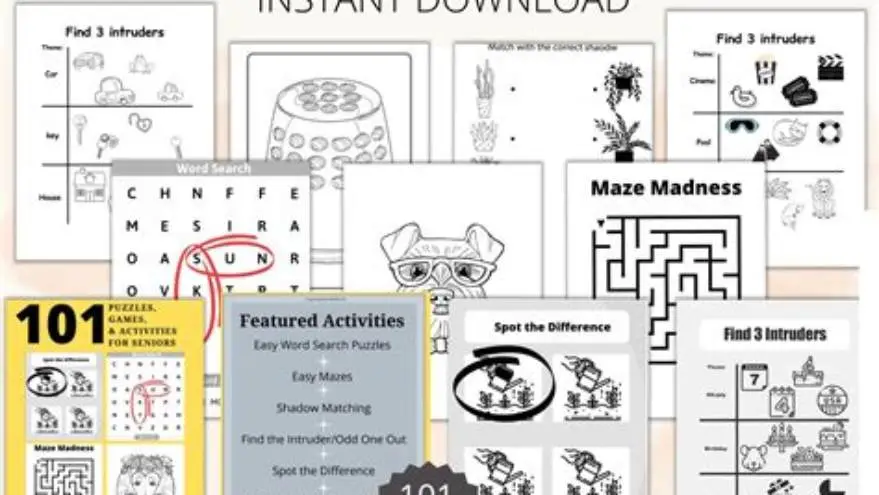
Tablets make puzzles bigger without making them heavier. Screens zoom, letters grow, and puzzles wait for the player. Hands that tire on a pencil can tap instead, and a stand holds the weight. For many older adults, that is the whole appeal.
That same tablet trips people up in ways paper never does. Text starts small, ads pretend to be buttons, and a wrong tap opens a shop. Timers rush the player, and a game that asks for a date of birth feels like a test. Most of these traps are settings, not the game itself.
Fix it once, calmly, before the first game. Bigger text, bold letters, no timers, and one game on the home screen. The rest of this page walks through that setup, the first game, and the habits that keep the tablet friendly.
Start with the person, not the tablet. Ask which puzzles they already enjoy on paper: word searches, crosswords, sudoku, jigsaws. Screen versions should feel like the same game, only larger. If the paper version is loved, the screen version has a head start. It helps to understand assisted living evening activities for seniors before going further.
How to help a senior play puzzles on a tablet: set up the screen first
Set the screen before you open a game. Text size is the first win, and it takes about a minute. On an iPhone or iPad, open Settings, then Accessibility, then Display and Text Size, then Larger Text. On Android, look under Settings, then Display, for font size. Samsung tablets put font size and style under Settings, then Display. Easy Mode under the same menu gives a simpler home screen with larger elements. Menus move between brands and versions, so use the search box at the top of Settings if the path differs.
Turn on bold text on the same screen. Bold letters hold their shape at larger sizes, and they read clearly at arm's length. Then try display zoom, which makes icons and buttons bigger too. iPhones and iPads hide it under Display and Brightness; Android phones put screen zoom under Display.
Calm the motion next. Animations that slide and bounce tire the eyes and confuse the hand. iPhones and iPads: open Settings, then Accessibility, then Motion, and turn on Reduce Motion. On Android, look under Accessibility for a setting that removes animations. Brightness matters too: set it to suit the room, and pick light or dark mode, whichever reads easier. We cover card games for seniors to play with grandchildren in its own article.
Put the puzzle app where it cannot be missed. One game on the home screen, and the rest tucked away. Full home screens are mazes; one big icon is a door. Check the setup by opening the game and holding the tablet at arm's length. If the letters read clearly, the setup is done.
- Make the text larger, then bold, and check a puzzle screen at arm's length.
- Switch on display zoom if icons and buttons still look small.
- Reduce motion if animations distract or tire the eyes.
- Adjust brightness to suit the room, and pick light or dark mode, whichever reads easier.
- Place the puzzle app on the home screen, and remove the rest from the first screen.
- Open the game once more the next morning, to check the setup held.
| Setting | iPhone or iPad | Android |
|---|---|---|
| Larger text | Settings > Accessibility > Display and Text Size > Larger Text | Settings > Display > Font size |
| Bold text | Same screen, Bold Text | Settings > Display > Bold text, varies by brand |
| Bigger icons | Settings > Display and Brightness > Display Zoom | Settings > Display > Screen zoom |
| Calmer motion | Settings > Accessibility > Motion > Reduce Motion | Settings > Accessibility > Remove animations |
Pick the first game together
One game is enough to start. Word searches and sudoku suit most players first: the rules are familiar, the pieces are large, and nothing moves unless the player moves it. Jigsaws with large pieces and solitaire also work well. Leave fast games and games with timers for later, or skip them for good.
Check the game before the player does. Open it yourself and look for four things: large pieces with clear letters, simple tap controls, no timer, and no sign-up. Games that ask for a date of birth, an address or bank details just to play are the wrong games. Close it and pick another. Set the tablet up without signing in where the game allows it, and use a guest profile if the tablet offers one. Never create an account just to play a puzzle. The other half of this decision is spring gardening activities for seniors.
Try the free version first, and watch for ads. Free games often show ads between rounds, and some ads look like buttons. Quiet ads between rounds are fine; a game that shouts is not. If the player enjoys the game, a paid version without ads may be worth it later, but never on the first day.
Let the player choose the game, not the helper. Show two or three options, play a round of each together, and let the player pick the one they liked. Chosen games get played; helper-chosen games get forgotten. Choice is the whole trick.
Teach it like a game, not a lesson
Sit beside the player, not across from them. Hold the tablet together for the first game, and tap the first pieces as a pair. Talk about the puzzle, not the tablet. Ask where the word goes, rather than telling them which button to press. The game teaches the tablet, not the other way round. We cover activities for seniors in hospice care in its own article.
Same word search every morning builds the habit of opening the tablet, finding the game, and playing. Familiarity beats variety at the start. New games can wait until the first one feels easy. Routines are worth more than shelves of games.
Show the steps on a card: 'Open the tablet. Tap the puzzle picture. Tap New Game.' Tape the card beside the charger, where it cannot be lost. Written cards beat remembered lessons every time, and they let the player start alone.
Praise the play, not the score. 'You found three words already' keeps a player going; 'You got 90 points' turns a pastime into a test. If the player gets stuck, solve the next piece together and move on. Playing is the point, not winning.
Tame the taps, ads and pop-ups
Accidental taps are the most common complaint. Resting fingers, brushing sleeves and shaking hands can all tap the wrong thing. A stand keeps the tablet steady, and a stylus gives a shaky hand a steady point. Cases with hand straps help too.
Ads are the second trap. They sit where buttons should be, and they shout. Teach one rule: an ad is not part of the game, so never tap inside it. Show the player the small cross or the word 'Close' in the corner, and practise closing an ad together. Closing an ad is a skill, and it can be learned.
Pop-ups that claim a prize are always a trick. 'You have won' means nothing, and tapping it can open a shop or a sign-up. Close the pop-up, and ask for help if it will not close. Never type a name, a date of birth or card details into a game. Real games never ask for those.
Readiness matters as much as setup. Charge it in one place, with the charger beside it, and plug it in after every session. Flat tablets are dead tablets, and dead tablets break the habit. Check once a week that the game still opens and the text is still large.
Apps that ask to sign in before play are the wrong games: close them and pick one that does not. Ads that will not close are beaten with the home button: press it and reopen the game. Games that crash on launch get one restart: turn the tablet off and on, try once more, and delete the game if it still crashes.
When the tablet is the wrong tool
Some days the screen is the problem, not the solution. Tired eyes, a shaky hand or a bad mood can turn a friendly game into a frustration. Put the tablet down without a fuss, and switch to paper, music or a chat. The tablet waits; the person comes first.
Watch for signs that the eyes need help. Squinting, holding the tablet closer and closer, or rubbing the eyes all say the setup needs another look, or the eyes need a check. Vision that changes suddenly, or one eye that blurs, is a question for a doctor, not a settings menu.
Paper puzzles are still puzzles. A large-print word search, a crossword in a book, or a jigsaw on a table all work when the screen does not. It is one tool among many, and the best tool is the one the person reaches for. Keep paper puzzles beside the tablet, so there is always another way to play.
Think of it as a tool, not a duty. Players who skip a day have not failed, and a game left unplayed is not a waste. The tablet earns its place by being there when wanted, and quiet when not. That is the whole measure of a good setup.
Still wondering?
What is the best puzzle game for a senior on a tablet?
Begin with a word search or sudoku: familiar rules, large pieces and no timer. Jigsaws and solitaire suit players who like slower games. Let the player try two or three and pick the one they liked.
How do I make the text bigger on a tablet?
iPhones and iPads: open Settings, then Accessibility, then Display and Text Size, then Larger Text, and turn on Bold Text too. On Android, font size lives under Settings, then Display. Menus move between brands, so use the Settings search box if the path differs.
What if the senior keeps tapping the ads by mistake?
Teach one rule: ads are not part of the game, so nothing inside an ad gets tapped. Show the small cross or the word Close in the corner, and practise closing ads together. A stylus or a stand also cuts down on stray taps.
Is a tablet safe for an older adult to use alone?
Yes, once the setup is done and the player knows the rules. Those rules are simple: never tap prize pop-ups, never type personal details into a game, and ask for help when stuck. Check in once a week, and keep the charger in one place.